Multiple Remote Desktop Viewer (C# / WCF)
Update: Many people have asked me to post the source code for this project. The code posted below is in a ‘prototyping’ phase. So code may not follow best coding standards and will be in severe need of refactoring.
I previously shared a remote desktop viewer implementation. That particular implementation used an adaptive algorithm to send back only the part of the screen that had changed. The remote component hosted a WCF service that could be polled at intervals by the viewer to refresh the image of the remote machine. This implementation was quick and left a bad taste in my mouth for two reasons:
- It is inefficient to have the viewer poll the remote client. The client knows when it has new information. At times, the viewer was polling and the client would essentially return a message indicating nothing has changed.
- In the real world, asking the remote machine to host the WCF service creates firewall issues. The remote client would need to ensure the viewer could “see” the WCF service.
A better design is to host the WCF service in the viewer and then have the clients push data only when necessary. This implementation only requires the viewer to expose the WCF service through the firewall. The following image shows the class diagram for components involved in implementing the WCF viewer service:
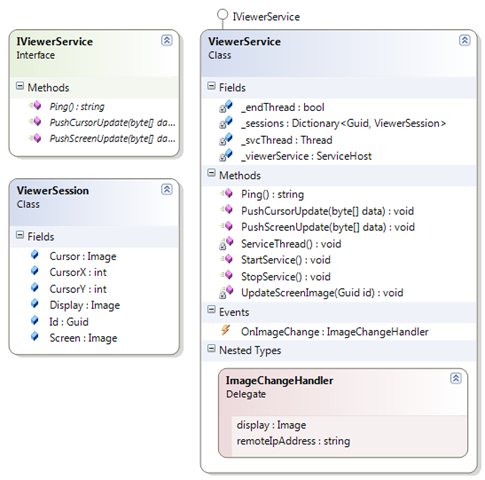
The WCF service is defined using he IViewerService contract. The three methods are:
- Ping – Used most for troubleshooting.
- PushCursorUpdate – Used to push new cursor content (the mouse has moved).
- PushScreenUpdate – Used to push new screen content (the screen has changed).
The ViewerSession class is used to encapsulate the content for each remote client that connects to the viewer. The ViewerService contains a Dictionary of these sessions. The data flow is as follows:
- The remote client calls either “push” method via their WCF proxy.
- The byte array received by the viewer is “unpacked” into image and other metadata.
- The unpacked data is updated in that client’s ViewerSession.
- The method UpdateScreenImage is called to merge the screen and cursor content.
- The OnImageChange event is triggered allowing all listeners to update based upon the new data.
The current implementation of the remote client is a Console application. This is a great test bench implementation. This allows diagnostic data to be written to the screen. The Main method is shown below:
private static ScreenCapture capture = new ScreenCapture();
private static RemoteDesktopServer.ViewerProxy.ViewerServiceClient viewerProxy = new RemoteDesktopServer.ViewerProxy.ViewerServiceClient();
private static Thread _threadScreen = null;
private static Thread _threadCursor = null;
private static bool _stopping = false;
private static int _numByteFullScreen = 1;
static void Main(string[] args)
{
    _threadScreen = new Thread(new ThreadStart(ScreenThread));
    _threadScreen.Start();

    _threadCursor = new Thread(new ThreadStart(CursorThread));
    _threadCursor.Start();

    Console.ReadLine();

    _stopping = true;
    _threadCursor.Join();
    _threadScreen.Join();
}
The ScreenCapture instance provides the features to capture screen and cursor updates. The ViewerServiceClient instance provides the proxy to the WCF service. Updates are pushed to the WCF service via two threads. One is responsible for cursor updates and the other is responsible for screen updates. At times screen updates are fairly bulky. Having a separate cursor thread allows the cursor to be displayed without continuous updates and provides a much smoother viewer experience. The multiple threads do introduce the need for thread safety with respect to the WCF server resources. The following methods provide the push services:
private static void RefreshConnection()
{
    // Get a new proxy to the WCF service.
    //
    viewerProxy = new RemoteDesktopServer.ViewerProxy.ViewerServiceClient();

    // Force a full screen capture.
    //
    capture.Reset();
}

private static void ScreenThread()
{
    Rectangle bounds = Rectangle.Empty;
    // Run until we are asked to stop.
    //
    while (!_stopping)
    {
        try
        {
            // Capture a bitmap of the changed pixels.
            //
            Bitmap image = capture.Screen(ref bounds);
            if (_numByteFullScreen == 1)
            {
                // Initialize the screen size (used for performance metrics)
                //
                _numByteFullScreen = bounds.Width * bounds.Height * 4;
            }
            if (bounds != Rectangle.Empty && image != null)
            {
                // We have data...pack it and send it.
                //
                byte[] data = Utils.PackScreenCaptureData(image, bounds);
                if (data != null)
                {
                    // Thread safety on the proxy.
                    //
                    lock (viewerProxy)
                    {
                        try
                        {
                            // Push the data.
                            //
                            viewerProxy.PushScreenUpdate(data);

                            // Show performance metrics
                            //
                            double perc1 = 100.0 * 4.0 * image.Width * image.Height / _numByteFullScreen;
                            double perc2 = 100.0 * data.Length / _numByteFullScreen;
                            Console.WriteLine(DateTime.Now.ToString() + ": Screen - {0:0.0} percent, {1:0.0} percent with compression", perc1, perc2);
                        }
                        catch (Exception ex)
                        {
                            // Push exception...log it
                            //
                            Console.WriteLine("*******************");
                            Console.WriteLine(ex.ToString());
                            Console.WriteLine("No connection...trying again in 5 seconds");
                            RefreshConnection();
                            Thread.Sleep(5000);
                        }
                    }
                }
                else
                {
                    // Show performance metrics.
                    //
                    Console.WriteLine(DateTime.Now.ToString() + ": Screen - no data bytes");
                }
            }
            else
            {
                // Show performance metrics.
                //
                Console.WriteLine(DateTime.Now.ToString() + ": Screen - no new image data");
            }
        }
        catch (Exception ex)
        {
            // Unhandled exception...log it.
            //
            Console.WriteLine("Unhandled: ************");
            Console.WriteLine(ex.ToString());
        }
    }
}

private static void CursorThread()
{
    // Run until we are asked to stop.
    //
    while (!_stopping)
    {
        try
        {
            // Get an update for the cursor.
            //
            int cursorX = 0;
            int cursorY = 0;
            Bitmap image = capture.Cursor(ref cursorX, ref cursorY);
            if (image != null)
            {
                // We have valid data...pack and push it.
                //
                byte[] data = Utils.PackCursorCaptureData(image, cursorX, cursorY);
                if (data != null)
                {
                    try
                    {
                        // Push the data.
                        //
                        viewerProxy.PushCursorUpdate(data);

                        // Show performance metrics.
                        //
                        double perc1 = 100.0 * 4.0 * image.Width * image.Height / _numByteFullScreen;
                        double perc2 = 100.0 * data.Length / _numByteFullScreen;
                        Console.WriteLine(DateTime.Now.ToString() + ": Cursor - {0:0.0} percent, {1:0.0} percent with compression", perc1, perc2);
                    }
                    catch (Exception ex)
                    {
                        // Push exception...log it.
                        //
                        Thread.Sleep(1000);
                    }
                }
            }
        }
        catch(Exception ex)
        {
            // Unhandled exception...log it.
            //
            Console.WriteLine("Unhandled: ************");
            Console.WriteLine(ex.ToString());
        }

        // Throttle this thread a bit.
        //
        Thread.Sleep(10);
    }
}
The presentation layer of the viewer simply adds a listener to the OnImageChange event that updates the presentation layer with the new data when signaled. The current implementation is a WinForms application. The callback registered to OnImageChange is shown below:
void svc_OnImageChange(Image display, string remoteIpAddress)
{
    lock (display)
    {
        UpdateTabs(display, remoteIpAddress);
    }
}

private delegate void UpdateTabsDelegate(Image display, string remoteIpAddress);
private void UpdateTabs(Image display, string remoteIpAddress)
{
    if (tabControl1.InvokeRequired)
    {
        Invoke(new UpdateTabsDelegate(UpdateTabs), new object[] { display, remoteIpAddress });
    }
    else
    {
        if (!_remoteViews.ContainsKey(remoteIpAddress))
        {
            // Add a new tab
            //
            TabPage page = new TabPage(remoteIpAddress);
            tabControl1.TabPages.Add(page);
        }

        // Add this to or update the dictionary
        //
        _remoteViews[remoteIpAddress] = display;

        // Update the viewer
        //
        pictureBox1.BackgroundImage = _remoteViews[tabControl1.SelectedTab.Text];
    }
}
The clients (multiple) will be calling the service methods asynchronously on a thread different than the UI thread. This requires the use of the InvokeRequired property and the Invoke method. When a new client contacts the viewer, a new tab UI element is created and the display image is added to the dictionary for look up. The background image for the picture box is set to the image for the currently selected tab. The following styles are set in the form’s load method to force the form to double buffer repaints to reduce flickering:
SetStyle(ControlStyles.UserPaint, true);
SetStyle(ControlStyles.AllPaintingInWmPaint, true);
SetStyle(ControlStyles.DoubleBuffer, true);
The following is a video of the implementation showing multiple remote client connections to the viewer (view in HD)
In the above video, the WCF service is configured to bind to my external IP address. I was attempting to get some real-world connection conditions into the video. Unfortunately, I think my firewall / NAT resolved the address and the packets never reached the internet. Regardless, the video demonstrates 3-4 screen captures per second from both the clients. The default JPEG compression is doing a great job at minimizing the number of bytes transferred. The image quality is a little degraded when compared to normal remote desktop experience.
Overall, I am pleased with the performance. In the next couple of blogs I hope to add some ability to interact with the remote desktop (move mouse, click, type, …).
)
About Author

rcravens
-
 Photo Gallery – ASP.NET + JavaScript
I will try to wrap up phase 1 of the roadmap for
-
 Building A Web App – Page Header and Footer
This is a continuation of a series of posts on the design
how to implement this project.
New to WCF. Unable to create proxy.
Disregard my earlier question… I see that you have updated the project here. I’m interested in applying some additional “dirty rectangle” logic to the capture logic to see what that does for the overall percentages of changed data.
Thanks again for the postings.
..UtilitiesUtilities.csproj
is referenced in the solution, but not in the zip
Jack…I will see what i can do to provide that project. I haven’t worked on it in quite sometime and the code is on an old machine.
Bob
Bob,
Did you get a chance to post that Utility project that is reference in project. Appreciate your help.
Thanks
David,
I did update the download. It now contains all the code that is necessary. It previously had all the code, but the solution still referenced an project (‘Utility’) that was not needed. I did a bit of clean up and made the solution start the server and client when you run. Be sure you are running VS using admin privileges unless you will get ‘AddressAccessDeniedExceptions’.
Bob
Hi !!
I want the exact source code for monitoring desktop of client system from server system and also i want to control client systems…..reply quickly…
Thanks…
See other reply….
Hi !!
I want the exact source code for monitoring desktop of client system from server system and also i want to control client systems using c#.net…..reply quickly…
Thanks…
There is a download link for the remote desktop code in the comments. This is a bit old (probably VS2008 project). The project was demonstrating desktop sharing, but you could code in the control.
Bob
Hi Bob
Nice work here, i have one question is it possible to control tablet (ipad) from asp web application? Do you have experience with that?
TNX
BTW….
This is a great article!!!
Hello.
Fix the bug would be appreciated.
Wrong icons being cut off when moving diagonally.
hmrok…Thanks for the feedback. I have not worked on this project in quite some time. I have no plans (no time) to revisit and as such, this bug may go un-patched. I appreciate you sharing the discovery with others, so that they can benefit and maybe even provide a solution.
Bob
Hi 🙂
when I debug this project it`s show exception :(, and cant understand why, can anybody help me 🙂
(pls its very important for me)
I think that problem is with app.config file 🙁
I get an ‘AddressAccessDeniedException’ when I am not running Visual Studio in Admin mode in Windows 7. Here is a bit more info: http://blogsprajeesh.blogspot.com/2009/03/addressaccessdeniedexception-wcf.html
Hope this helps.
Bob
Hi CRAVENS ! I don’t know.How to control mouse and process ?
I’m using Win32 API to control remote machine.
Where is module control ?
Thanks for share !
You use “SVC”.You can introduce “SVC”.
Thanks !
I’m trying to build the proxy, but i am unable to do this..
Also i need to say that i am new to endpoints, someone a good howto or can put me in the right direction to get this working??
Kind regards & Thanks in advance
I have tried the running the solution on multiple machines. As long as I run Visual Studio with Admin privileges (in Vista /Win 7) it works directly as provided from the zip file. Is this not the case for you? What kind of exceptions are you seeing?
I have a Windows 2008 server running in DataCenter.. so i want to host Only the proxy part public.. so then the server pushes it to proxy back to the form.
Hello Thanks for this project.
How can i change ip i cant found and virtual studio 2008 cant open some project.(clienside …)
I JUST HAVE A SIMPLE QUESTION TO ASK YOU SIR CAN WE USE THIS IN A VIRTUAL BOX PC AND A HOST COMPUTER ? AND HOW !!!! BECOZ ITS SHOWING THAT ECHO FUNCTION FAILED ?
Hi Bob,
I liked ur code very much. But i came across an exception. i tried but i was unable to solve it.If u help me or tell me something about this then i will be thankful to u.
” System.ServiceModel.AddressAccessDeniedException was unhandled
Message=HTTP could not register URL http://+:1003/Rlc/Viewer/. Your process does not have access rights to this namespace ..”
Hi Rammohan,
I am not certain of what is causing your issue. Sorry that I am not able to help.
Bob
Hi, This is because you need to run VS2012 as administrator
Had the same issue, try to run VS in administrator mode
Came across this excellent post, thanks Bob.
Just wanted to know what are your thoughts on whether removing the WCF layers (for an internal LAN solution) and replacing with Sockets would improve performance?
Hi Joe,
Thanks for stopping by. Later I re-did this app using ASP.NET MVC (http://blog.bobcravens.com/2009/10/monitor-multiple-computers-remotely-using-asp-net-mvc/). For a LAN, that is probably a better starting point.
Bob
hi bob,
it’s a great app,
can u please give me some idea to develop an app, that can control(type,click, move the mouse…) on the remote computer, like your app, but with contol on remote computer. please. And thank you
I would take a look at the asp.net mvc version (http://blog.bobcravens.com/2009/10/monitor-multiple-computers-remotely-using-asp-net-mvc/) where I implemented a better message passing interface. I was setting it up to pass mouse / keyboard messages back and forth.
I have no a proxy, how i can start the server. Are there any way to do it without a proxy server. Can I use my Public IP for that. Please help me! Thank much!
I would take a look at the MVC version (http://blog.bobcravens.com/2009/10/monitor-multiple-computers-remotely-using-asp-net-mvc/). The server for that one can be on the internet and then each client only needs to have internet connectivity.
Hi Bob. i been test your project, i have question with mouseClick. function exclude mouse? . thanks
I would check out the mvc version (http://blog.bobcravens.com/2009/10/monitor-multiple-computers-remotely-using-asp-net-mvc/). I was setting that one up to be able to pass mouse/keyboard messages back and forth.
Hi. Thanks for this project. you can help me for event draganddrop mouse? help me 🙂
Take a look at the mvc version( http://blog.bobcravens.com/2009/10/monitor-multiple-computers-remotely-using-asp-net-mvc/). It has a better message passing system and could be extended to include mouse/keyboard messages.
Why did you use the serverproxy over the client?
Hi bob, is the latest version of the code the one available for download? I think that the code you have for download seems to be for the single desktop mode (not for this multiple-desktop sharing mode)
Question: Any progress made on supporting mouse moves/clicks (from client to server)
Also, I would like to consume the code from GitHub, do you know if there is already a clone/fork in there?
My plan is to add support to this to the O2 Platform project I’m working on (http://o2platforn.com)
I also just blogged about your great series of posts on remote desktop sharing at my Blog
(previous comment had a couple broken links)
Hi bob, is the latest version of the code the one available for download? I think that the code you have for download seems to be for the single desktop mode (not for this multiple-desktop sharing mode)
Question: Any progress made on supporting mouse moves/clicks (from client to server)
Also, I would like to consume the code from GitHub, do you know if there is already a clone/fork in there?
My plan is to add support to this to the O2 Platform project I’m working on (http://o2platform.com)
I also just blogged about your great series of posts on remote desktop sharing at : http://diniscruz.blogspot.co.uk/2012/05/streaming-remotedesktops-via-images.html
Hi Dinis,
Thanks for visiting and posting a link to the article on your site. The download for the project is as far as I ever went. I eventually did an asp.net mvc version (http://blog.bobcravens.com/2009/10/monitor-multiple-computers-remotely-using-asp-net-mvc/) that was a bit more evolved. The mvc version had a message bus that I was intending on using to pass mouse/keyboard messages for remote control. I am not aware of any Github repos with this code. Feel free to create one if you want. Maybe post back here with the link so others can fork.
Bob
can you give me a separate files for server and client
Please any one help me
this exception
HTTP could not register URL http://+:1003/Rlc/Viewer/. Your process does not have access rights to this namespace (see http://go.microsoft.com/fwlink/?LinkId=70353 for details).
You need to tell Windows that your application has rights to that port on http. I suggest looking up the netsh command for windows 7 and httpcfg command for windows xp. ex. netsh http add urlacl url=http://+:1033/Rlc/Viewer. Run “netsh http show urlacl” to see some examples.
Hi Bob, i am able to view desktop on localhost but not in network or remote machine. Please give solution.
Hi Bob,
Firstly, excellent work! I’m really interested in expanding on the idea that you have here.. My suggestion is to expand the WCF service so that there is a main (rendevouz) server that all clients connect to and the service is hosted on that single server. All clients would connect to the WCF service via TCP and push its updates to the server. Each client would receive the screen updates from the other clients via a callback method?
Do you think this would be a viable method as it would remove a large part of the firewall issues from the client side (since they make a single outgoing connection to the server) and the client would only receive updates as and when since it would receive the callback from the server with the data pushed from the other client..
Hopefully, this makes sense! It’s difficult to explain…
Thanks Rob
will you please tell me what logic you use to send the screen shot of one machine to send over to another machine over the network. every time are you sending a complete image of desktop to another machine over network or just only difference between prev and current image.
if you send only difference then tell me what logic you use to apply the diif on current image at the other end where screen changes are displaying. please discuss my two points in details.
Hi Bob,
Have you thought about using compression on the bytes you transfer during the “PackScreenCaptureData” function? I’m wondering whether some sort of ZIP compression on that data just before its sent, and then unzipped on the other side would help reduce byte size and therefore allow a higher refresh rate?
I’m currently converting your project to VB.net and DotNet 4 and the idea occurred to me?
Thanks Rob
Give it a try. If I recall, I was doing JPEG compression, but there may be additional compression left depending upon the algorithm used.
I am developing an application that requires remotely accessing Desktop through wp7.
Many applications are available for this purpose.
But i want to develop it on my own.
Please provide some guidance.
Hi Bob,
It is amazing article and is working fine.
For the rest:
Start first the ClientSide/WinFormClient
After start the ServerSide/RemoteDesktopHost and that’s it the capturing will start to work.
Tod Canov.
hi bob , i am want to develop an server client application that can provide remote access and mouse and keyboard control and remote shutdown using c#.net can you help me how to start. please send me an email at : ahmed_khalil91@ymail.com
hi bob , is possible to share screen on mac using mvc
Hi,
We are developing a remote application using Remote desktop services, In this we have a functionality of opening a word file from the app, it is opening the winword from the server not from the client, is there any redirection for file type to client in RDS
Thanks
hiii
remote desktop sharing project is very important for me.
i have problem with this proje
can you help me ?? can i have email address please ??
thanks
Hi, I from Turkey. I know little English…
I’m getting images from the same computer but on different computers can not be.. Please Help me!… This by the way nice project.
Thanks… 🙂
Any idea how this could be modified to run as a windows service? I would like to remote the username/password login screen and log in to the remote server.
Well done Rob, you reall did a very good job but pls how to use it remote computer
really great, thank you.
its very wonderful work
I know the project was published years ago, but I was playing around with it and I’m curious. Is there a way to make the tabs read the local IP or computer name instead of a Guid? I have tried a few ways and have been unsuccessful. I would love any input you have.
Hi Bob,
got the SW working! so forget my previous reply. Just had to change the path of “Microsoft.WebApplication.targets” and the cpu to 32-Bit and off it goes. Will next try the connection to another computer! So no action necessary from your side . Clean code! Wow!
Just for completion:
Is there a way to patch the sw to a 64-bit cpu? Just for the question.
Best Regards from happy
Hans